
Introduction
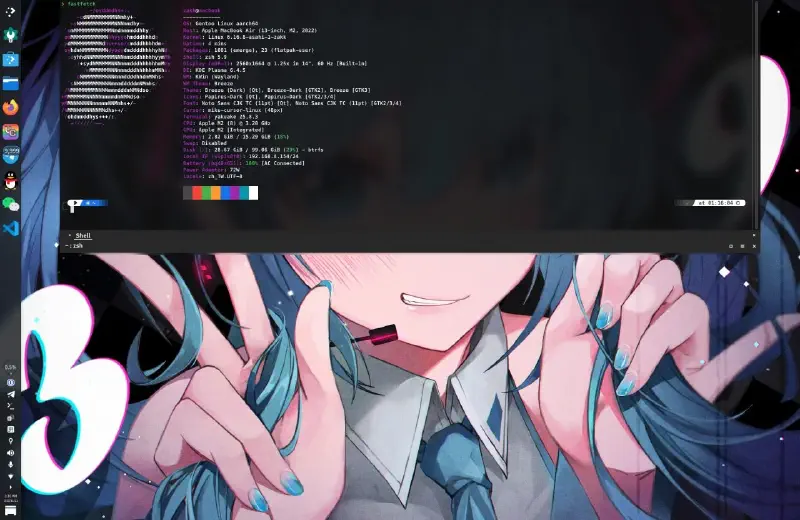
This guide will walk you through installing native ARM64 Gentoo Linux on Apple Silicon Mac (M1/M2 Series).
⚠️ Important: Hardware Compatibility
Supported Devices: M1 and M2 series MacBooks (Pro, Air, Mac Mini etc.)
Not Supported Yet: M3, M4, M5 series chips are currently not supported, please wait for Asahi Linux project updates.
Important Update: Thanks to the excellent work of the Asahi Linux project team (especially chadmed), we now have an Official Gentoo Asahi Guide, and the installation process has been greatly simplified.
Guide Features:
- Based on latest official process (2025.10)
- Uses official Gentoo Asahi Live USB (No Fedora dependency)
- clearly marks optional vs required steps
- Simplified version suitable for everyone (includes encryption option)
Verified up to November 20, 2025.
Target Platform: Apple Silicon Mac (M1/M2 Series) ARM64 architecture. This guide uses Asahi Linux bootloader for initial setup, then converts to a full Gentoo environment.
Installation Overview (Simplified)#
Required Steps:
- Download Official Gentoo Asahi Live USB Image
- Setup U-Boot environment via Asahi Installer
- Boot from Live USB
- Partition disk and mount filesystems
- Unpack Stage3 and enter chroot
- Install Asahi support packages (Automated script)
- Reboot to finish installation
Optional Steps:
- LUKS Encryption (Recommended but optional)
- Custom Kernel Config (Default dist-kernel is fine)
- Audio Setup (PipeWire, as needed)
- Desktop Environment Selection
The entire process creates a dual-boot environment on your Mac: macOS + Gentoo Linux ARM64.
Official Simplification
You can now use asahi-gentoosupport automated script to complete most configurations!
Prerequisites and Notes#
Hardware Requirements#
- Apple Silicon Mac (M1/M2 Series only, M3/M4/M5 not supported yet)
- At least 80 GB available disk space (Recommended 120 GB+)
- Stable Network Connection (Wi-Fi or Ethernet)
- Backup all important data
Important Warning#
This guide involves advanced operations:
- Will modify your partition table
- Requires coexistence with macOS
- Involves encrypted disk operations
- Apple Silicon support for Linux is still under active development
Known Working Features:
- CPU, Memory, Storage
- Wi-Fi (via Asahi Linux firmware)
- Keyboard, Trackpad, Battery management
- Display Output (Internal & External)
- USB-C / Thunderbolt
Known Limitations:
- Touch ID not working
- macOS virtualization Limited
- Some new hardware features might not be fully supported
- GPU acceleration is under development (OpenGL partially supported)
0. Prepare Gentoo Asahi Live USB#
0.1 Download Official Gentoo Asahi Live USB#
Official Simplified Process: Use Gentoo provided ARM64 Live USB directly, no need for Fedora!
Download latest version:
# Method 1: Author site download
https://chadmed.au/pub/gentoo/
Tip
Official is integrating Asahi support into standard Live USB. Currently using version maintained by chadmed.
Mirror Version Compatibility Info (Updated: 2025-11-21)
- Official Version:
- Recommended:
install-arm64-asahi-20250603.iso(June 2025, tested stable) - May not boot:
install-arm64-asahi-20251022.iso(October 2025) may fail to boot on some devices (e.g. M2 MacBook) - Suggestion: If latest version fails to boot, try 20250603.
- Recommended:
0.2 Create Bootable USB#
In macOS:
# Check USB device name
diskutil list

# Unmount USB (Assuming /dev/disk4)
diskutil unmountDisk /dev/disk4

# Write image (Note: using rdisk is faster)
sudo dd if=install-arm64-asahi-*.iso of=/dev/rdisk4 bs=4m status=progress

# Eject after finish
diskutil eject /dev/disk4
1. Set Asahi U-Boot Environment#
1.1 Run Asahi Installer#
Run in macOS Terminal:
curl https://alx.sh | sh
Security Tip
Recommended to check script content at https://alx.sh before running.
1.2 Follow Installer Steps#
The installer will guide you:
Choose Action: Input
r(Resize an existing partition to make space for a new OS)Choose Partition Size: Decide space for Linux (Recommended at least 80 GB)
- Can use percentage (e.g.
50%) or absolute size (e.g.120GB)
- Can use percentage (e.g.
Tip
Recommended to keep macOS partition for future firmware updates.
- Choose OS: Select UEFI environment only (m1n1 + U-Boot + ESP)
» OS: <Select UEFI only option>
Official Recommendation
Choosing UEFI only is sufficient, no need to install full distribution.
Set Name: Input
Gentooas OS name» OS name: GentooFinish Installation: Note screen instructions, then Press Enter to shutdown.
1.3 Complete Recovery Mode Setup (Critical Step)#
Important Reboot Steps:
- Wait 25 seconds to ensure system is fully off.
- Press and HOLD power button until you see "Loading startup options..." or spinning icon.
- Release power button.
- Wait for volume list, select Gentoo.
- You will see macOS Recovery screen:
- If asked "Select a volume to recover", select your macOS volume and click Next.
- Enter macOS user password (FileVault users).
- Follow screen instructions to complete setup.
Troubleshooting
If encountering boot loop or asked to reinstall macOS, press and hold power button to force shutdown, then start from step 1 again. Can choose macOS boot, run curl https://alx.sh | sh and select p option to retry.
2. Boot from Live USB#
2.1 Connect Live USB and Boot#
- Insert Live USB (Can use USB Hub or Dock)
- Boot Mac
- U-Boot Auto Boot:
- If "UEFI environment only" was chosen, U-Boot will automatically boot GRUB from USB
- Wait 2 seconds for auto boot sequence
- If multiple systems exist, might need to interrupt and manually select
Tip
If you need to manually specify USB boot, run in U-Boot prompt:
setenv boot_targets "usb"
setenv bootmeths "efi"
boot
2.2 Configure Network (Live Environment)#
Gentoo Live USB built-in network tool:
Wi-Fi Connection:
net-setup
Follow interactive prompts. Check after completion:
ping -c 3 www.gentoo.org
Tip
Apple Silicon Wi-Fi is included in kernel and should work. If unstable, try 2.4 GHz network.
SSH Remote (Optional):
passwd                     # Set root password
/etc/init.d/sshd start
ip a | grep inet          # Get IP address
3. Partitioning and Filesystem Setup#
3.1 Identify Disk and Partitions#
Important Warning
Do NOT modify existing APFS container, EFI partition or Recovery partition! Only operate in the space reserved by Asahi installer.
Check partition structure:
lsblk
blkid --label "EFI - GENTO"  # Check your EFI partition
Usually you see:
NAME        MAJ:MIN RM   SIZE RO TYPE MOUNTPOINTS
nvme0n1     259:0    0 465.9G  0 disk
|-nvme0n1p1 259:1    0   500M  0 part
|-nvme0n1p2 259:2    0 307.3G  0 part
|-nvme0n1p3 259:3    0   2.3G  0 part
|-nvme0n1p4 259:4    0   477M  0 part
`-nvme0n1p5 259:5    0     5G  0 part
EFI Partition ID (Do NOT touch this partition!):
livecd ~ # blkid --label "EFI - GENTO"
/dev/nvme0n1p4  # This is EFI partition
Recommendation
Use cfdisk for partitioning, it understands Apple partition types and protects system partitions.
3.2 Create Root Partition#
Assuming free space starts from /dev/nvme0n1p5:
Method A: Simple Partition (No Encryption)
# Use cfdisk to create new partition
cfdisk /dev/nvme0n1
Steps:
- Select Free space → New
- Use all space (or custom size)
- Type → Select Linux filesystem
- Write → Input
yes - Quit
Format Partition:
# Format as ext4 or btrfs
mkfs.ext4 /dev/nvme0n1p6
# OR
mkfs.btrfs /dev/nvme0n1p6

# Mount
mount /dev/nvme0n1p6 /mnt/gentoo
Method B: Encrypted Partition (Optional, Recommended)
# Create LUKS2 encrypted partition
cryptsetup luksFormat --type luks2 --pbkdf argon2id --hash sha512 --key-size 512 /dev/nvme0n1p6

# Type YES to confirm, set password

# Open encrypted partition
cryptsetup luksOpen /dev/nvme0n1p6 gentoo-root

# Format
mkfs.btrfs --label root /dev/mapper/gentoo-root

# Mount
mount /dev/mapper/gentoo-root /mnt/gentoo
Why these parameters?
argon2id: Resistant to ASIC/GPU brute forceaes-xts: M1 has AES instructions, hardware acceleratedluks2: Better security tools
3.3 Mount EFI Partition#
mkdir -p /mnt/gentoo/boot
mount /dev/nvme0n1p4 /mnt/gentoo/boot
4. Stage3 and Chroot#
Follow AMD64 Handbook from here until Kernel Installation chapter.
4.1 Download and Unpack Stage3#
cd /mnt/gentoo

# Download latest ARM64 Desktop systemd Stage3
wget https://distfiles.gentoo.org/releases/arm64/autobuilds/current-stage3-arm64-desktop-systemd/stage3-arm64-desktop-systemd-*.tar.xz

# Unpack (Preserve attributes)
tar xpvf stage3-*.tar.xz --xattrs-include='*.*' --numeric-owner
4.2 Configure Portage#
mkdir --parents /mnt/gentoo/etc/portage/repos.conf
cp /mnt/gentoo/usr/share/portage/config/repos.conf /mnt/gentoo/etc/portage/repos.conf/gentoo.conf
4.3 Sync System Time (Important)#
Before chroot, ensure time is correct:
# Sync time
chronyd -q

# Verify
date
4.4 Enter Chroot Environment#
Mount filesystems:
cp --dereference /etc/resolv.conf /mnt/gentoo/etc/
mount --types proc /proc /mnt/gentoo/proc
mount --rbind /sys /mnt/gentoo/sys
mount --make-rslave /mnt/gentoo/sys
mount --rbind /dev /mnt/gentoo/dev
mount --make-rslave /mnt/gentoo/dev
mount --bind /run /mnt/gentoo/run
mount --make-slave /mnt/gentoo/run
Enter chroot:
chroot /mnt/gentoo /bin/bash
source /etc/profile
export PS1="(chroot) ${PS1}"
4.5 Base System Configuration#
Configure make.conf (Optimized for Apple Silicon):
Edit /etc/portage/make.conf:
nano -w /etc/portage/make.conf
Add/Modify:
# vim: set language=bash;
CHOST="aarch64-unknown-linux-gnu"

# Apple Silicon Optimized Flags
COMMON_FLAGS="-march=armv8.5-a+fp16+simd+crypto+i8mm -mtune=native -O2 -pipe"
CFLAGS="${COMMON_FLAGS}"
CXXFLAGS="${COMMON_FLAGS}"
FCFLAGS="${COMMON_FLAGS}"
FFLAGS="${COMMON_FLAGS}"
RUSTFLAGS="-C target-cpu=native"

# Keep output in English
LC_MESSAGES=C

# Adjust for hardware (e.g. M2 Max has more cores)
MAKEOPTS="-j4"

# Gentoo Mirror (Recommended R2 mirror for speed)
GENTOO_MIRRORS="https://gentoo.rgst.io/gentoo"

# Emerge defaults
EMERGE_DEFAULT_OPTS="--jobs 3"

# Asahi GPU Driver
VIDEO_CARDS="asahi"

# Localization
L10N="zh-CN zh-TW zh en"

# Keep newline at end of file!
Sync Portage:
emerge-webrsync
Set Timezone:
# Set timezone (e.g. Taipei)
ln -sf /usr/share/zoneinfo/Asia/Taipei /etc/localtime
Set Locale:
nano -w /etc/locale.gen
# Uncomment: en_US.UTF-8 UTF-8
# Uncomment: zh_CN.UTF-8 UTF-8 (If needed)

locale-gen
eselect locale set en_US.utf8
env-update && source /etc/profile && export PS1="(chroot) ${PS1}"
Create User and Password:
useradd -m -G wheel,audio,video,usb,input <username>
passwd <username>
passwd root
5. Install Asahi Support Packages (Core)#
Official Simplified Process
This chapter replaces Handbook's "Kernel Installation".
5.1 Method A: Automated Install (Recommended)#
Step 1: Install git
emerge --sync
emerge --ask dev-vcs/git
Step 2: Use asahi-gentoosupport script:
cd /tmp
git clone https://github.com/chadmed/asahi-gentoosupport
cd asahi-gentoosupport
./install.sh
This script automatically:
- Enables Asahi overlay
- Installs GRUB bootloader
- Sets VIDEO_CARDS="asahi"
- Installs asahi-meta (Kernel, Firmware, m1n1, U-Boot)
- Runs
asahi-fwupdateandupdate-m1n1 - Updates system
If USE flag conflicts
If triggered:
# Ctrl+C
emerge --autounmask-write <package>
etc-update # Select -3
cd /tmp/asahi-gentoosupport
./install.sh
After script finishes, jump to Step 5.3 (fstab)!
5.2 Method B: Manual Install (Advanced)#
Step 1: Install git and set Asahi overlay
emerge --sync
emerge --ask dev-vcs/git

rm -rf /var/db/repos/gentoo
sudo tee /etc/portage/repos.conf/gentoo.conf << 'EOF'
[DEFAULT]
main-repo = gentoo

[gentoo]
location = /var/db/repos/gentoo
sync-type = git
sync-uri = https://github.com/gentoo-mirror/gentoo.git
auto-sync = yes
sync-depth = 1
EOF

sudo tee /etc/portage/repos.conf/asahi.conf << 'EOF'
[asahi]
location = /var/db/repos/asahi
sync-type = git
sync-uri = https://github.com/chadmed/asahi-overlay.git
auto-sync = yes
EOF

emerge --sync
Step 2: Mask upstream dist-kernel
mkdir -p /etc/portage/package.mask
cat > /etc/portage/package.mask/asahi << 'EOF'
# Mask the upstream dist-kernel virtual
virtual/dist-kernel::gentoo
EOF
Step 3: package.use
mkdir -p /etc/portage/package.use
cat > /etc/portage/package.use/asahi << 'EOF'
dev-lang/rust-bin rustfmt rust-src
dev-lang/rust rustfmt rust-src
EOF

echo 'VIDEO_CARDS="asahi"' >> /etc/portage/make.conf
echo 'GRUB_PLATFORMS="efi-64"' >> /etc/portage/make.conf
Step 4: Firmware License
mkdir -p /etc/portage/package.license
echo 'sys-kernel/linux-firmware linux-fw-redistributable no-source-code' > /etc/portage/package.license/firmware
Step 5: Install rust-bin (First)
emerge -q1 dev-lang/rust-bin
Step 6: Install Asahi Packages
emerge -q sys-apps/asahi-meta virtual/dist-kernel:asahi sys-kernel/linux-firmware
Step 7: Update Firmware and Bootloader
asahi-fwupdate
update-m1n1
Step 8: Install GRUB
emerge -q grub:2
grub-install --boot-directory=/boot/ --efi-directory=/boot/ --removable
grub-mkconfig -o /boot/grub/grub.cfg
Step 9: Update System
emerge --ask --update --deep --changed-use @world
5.3 Configure fstab#
Get UUIDs:
blkid $(blkid --label root)       # Root partition (or /dev/mapper/gentoo-root)
blkid $(blkid --label "EFI - GENTO")     # Boot partition
Edit /etc/fstab:
nano -w /etc/fstab
# Root Partition (Adjust as needed)
UUID=<your-root-uuid>  /      ext4   defaults  0 1
# Or Encrypted Btrfs:
# UUID=<your-btrfs-uuid>  /      btrfs  defaults  0 1

UUID=<your-boot-uuid>  /boot  vfat   defaults  0 2
5.4 Configure Encryption Support (Encrypted Users Only)#
Note
Perform this step ONLY if you chose Encrypted Partition in Step 3.2.
Step 1: Enable systemd cryptsetup support
mkdir -p /etc/portage/package.use
echo "sys-apps/systemd cryptsetup" >> /etc/portage/package.use/fde

# Rebuild systemd to enable cryptsetup
emerge --ask --oneshot sys-apps/systemd
Step 2: Get LUKS Partition UUID
# Get UUID of LUKS container (Not the filesystem inside)
blkid /dev/nvme0n1p6
Example Output:
/dev/nvme0n1p6: UUID="a1b2c3d4-e5f6-7890-abcd-ef1234567890" TYPE="crypto_LUKS" ...
Note down this LUKS UUID.
Step 3: Configure GRUB Kernel Args
nano -w /etc/default/grub
Add/Modify (Replace UUID with actual values):
GRUB_CMDLINE_LINUX="rd.luks.uuid=a1b2c3d4-e5f6-7890-abcd-ef1234567890 rd.luks.allow-discards root=UUID=f3db74a5-dc70-48dd-a9a3-797a0daf5f5d rootfstype=btrfs"
Parameter Explanation
rd.luks.uuid=<UUID>: UUID of LUKS containerrd.luks.allow-discards: Allow SSD TRIM pass-throughroot=UUID=<UUID>: UUID of decrypted filesystem (e.g. btrfs inside mapper)rootfstype=btrfs: Root filesystem type
Step 4: Configure Dracut for LUKS
Install dracut:
emerge --ask sys-kernel/dracut
Create config /etc/dracut.conf.d/luks.conf:
# Do not set kernel_cmdline here, GRUB handles it
kernel_cmdline=""
# Add modules for LUKS + Filesystem
add_dracutmodules+=" btrfs systemd crypt dm "
# Add tools
install_items+=" /sbin/cryptsetup /bin/grep "
# Filesystem
filesystems+=" btrfs "
Step 5: Configure /etc/crypttab (Optional)
nano -w /etc/crypttab
Content:
gentoo-root UUID=<LUKS-UUID> none luks,discard
Step 6: Regenerate initramfs
# Get current kernel version
dracut --kver $(make -C /usr/src/linux -s kernelrelease) --force
Important
Must regenerate initramfs after every kernel update!
Step 7: Update GRUB
grub-mkconfig -o /boot/grub/grub.cfg
grep initrd /boot/grub/grub.cfg  # Verify initrd is referenced
6. Finalize and Reboot#
6.1 Final Setup#
Hostname:
echo "macbook" > /etc/hostname
Enable NetworkManager:
systemctl enable NetworkManager
Root Password:
passwd root
6.2 Exit Chroot and Reboot#
exit
umount -R /mnt/gentoo
# If encrypted:
cryptsetup luksClose gentoo-root

reboot
6.3 First Boot#
- U-Boot auto starts
- GRUB menu appears, select Gentoo
- (If encrypted) Enter LUKS password
- System should boot to login prompt
Congratulations! Base system installed!
7. Post-Installation (Optional)#
7.1 Networking#
# Wi-Fi
nmcli device wifi connect <SSID> password <PASSWORD>
# Or UI
nmtui
7.2 Install Desktop Environment#
Important
Switch to appropriate system profile BEFORE installing desktop!
Step 1: Select Profile
eselect profile list
Choose:
# GNOME
eselect profile set 5    # desktop/gnome/systemd

# KDE Plasma (Recommended)
eselect profile set 7    # desktop/plasma/systemd

# Generic Xfce
eselect profile set 3    # desktop
Step 2: Update System
emerge -avuDN @world
Step 3: Install Desktop
Option A: KDE Plasma (Recommended)
emerge --ask kde-plasma/plasma-meta kde-apps/kate kde-apps/dolphin
systemctl enable sddm
Option B: GNOME
emerge --ask gnome-base/gnome gnome-extra/gnome-tweaks
systemctl enable gdm
Step 4: Optimize Performance
Video Acceleration:
emerge --ask media-libs/mesa # Asahi drivers included
Fonts:
emerge --ask media-fonts/noto media-fonts/noto-cjk
Input Method:
emerge --ask app-i18n/fcitx-chinese-addons
Tip
Desktop installation takes 2-4 hours. Use --jobs 3 to avoid OOM.
7.3 Audio Setup#
Install Asahi audio support:
emerge --ask media-libs/asahi-audio
systemctl --user enable --now pipewire-pulse.service
systemctl --user enable --now wireplumber.service
8. System Maintenance#
8.1 Regular Updates#
emerge --sync  # Syncs Asahi overlay too
emerge -avuDN @world
emerge --depclean
8.2 After Kernel Update (CRITICAL)#
Must Run Every Time Kernel Updates!
# Update m1n1 Stage 2 (Device Tree)
update-m1n1

# Regenerate GRUB
grub-mkconfig -o /boot/grub/grub.cfg
Why? m1n1 needs updated devicetrees to boot new kernel properly.
8.3 Firmware Updates#
Keep macOS partition to receive Apple firmware updates.
9. FAQ#
Q: Cannot boot from USB? A: Try USB 2.0 drive or valid USB Hub. U-Boot USB support is limited.
Q: Black screen on boot?
A: Mismatch between m1n1/U-Boot/Kernel. Re-run update-m1n1 in chroot. Or retry Asahi Installer p option.
Q: Wi-Fi unstable? A: Use 5GHz or 2.4GHz, avoid 6GHz / WPA3 if possible.
Q: Touchpad not working?
A: Check firmware (dmesg | grep firmware) and ensure asahi-meta is installed.
10. Advanced Tips#
10.1 Notch Setup#
Enable notch area:
# Add to GRUB CMDLINE
apple_dcp.show_notch=1
10.2 Custom Kernel#
Use sys-kernel/asahi-sources.
emerge --ask sys-kernel/asahi-sources
make menuconfig
make && make modules_install && make install
update-m1n1
grub-mkconfig ...
10.3 Multi-Kernel#
eselect kernel set <num>
update-m1n1
11. References#
Community Support#
- IRC:
#gentooand#asahi@ Libera.Chat - Telegram: @gentoo_zh
Conclusion#
Enjoy Gentoo on Apple Silicon!#
Simplified guide based on official Project:Asahi.
Key Points:
- Use automated install script
update-m1n1after kernel update- Have fun!