
Introduction
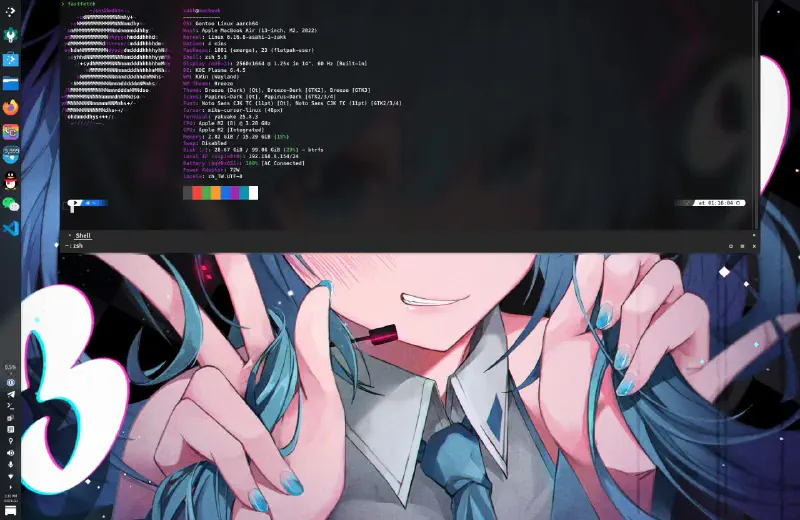
This guide will walk you through installing native ARM64 Gentoo Linux on your Apple Silicon Mac (M1/M2 series).
⚠️ Important: Hardware Compatibility
Supported Devices: M1 and M2 series MacBooks (Pro, Air, Mac Mini, etc.)
Not Currently Supported: M3, M4, M5 series chips are not yet supported. Please wait for Asahi Linux project updates.
Important Update: The excellent work of the Asahi Linux project team (especially chadmed) has made an official Gentoo Asahi installation guide available. The installation process has been greatly simplified.
This Guide Features:
- Based on the official latest process (2025.10)
- Uses official Gentoo Asahi Live USB (no Fedora intermediate)
- Clearly marks optional vs required steps
- Simplified for everyone (includes encryption options)
Last Verified: November 20, 2025.
Target Platform: Apple Silicon Mac (M1/M2 series) ARM64 architecture. This guide uses the Asahi Linux bootloader for initial setup, then transitions to a full Gentoo environment.
Installation Overview (Simplified)#
Required Steps:
- Download official Gentoo Asahi Live USB image
- Set up U-Boot environment via Asahi installer
- Boot from Live USB
- Partition disk and mount filesystems
- Extract Stage3 and enter chroot
- Install Asahi support packages (automated script)
- Reboot to complete installation
Optional Steps:
- LUKS encryption (recommended but not required)
- Custom kernel configuration (default dist-kernel is fine)
- Audio setup (PipeWire, as needed)
- Desktop environment choice
The entire process will create a dual-boot environment on your Mac: macOS + Gentoo Linux ARM64.
Official Simplification
Now you can use the asahi-gentoosupport automated script to complete most configurations!
Prerequisites and Important Notes#
Hardware Requirements#
- Apple Silicon Mac (M1/M2 series chips only, M3/M4/M5 not supported)
- At least 80 GB available disk space (120 GB+ recommended)
- Stable network connection (Wi-Fi or Ethernet)
- Backup all important data
Important Warnings#
This guide contains advanced operations:
- Will modify your partition table
- Requires coexistence with macOS
- Involves encrypted disk operations
- Apple Silicon Linux support is still under active development
Known Working:
- CPU, memory, storage
- Wi-Fi (via Asahi Linux firmware)
- Keyboard, trackpad, battery management
- Display output (internal screen and external monitors)
- USB-C / Thunderbolt
Known Limitations:
- Touch ID not available
- macOS virtualization features limited
- Some newer hardware features may not be fully supported
- GPU acceleration still in development (OpenGL partially supported)
Important: This guide assumes you have basic Linux knowledge. If you encounter issues, refer to the official Gentoo Asahi Wiki.
0. Prepare Gentoo Asahi Live USB#
0.1 Download Official Gentoo Asahi Live USB#
Official simplified process: Directly use the ARM64 Live USB provided by Gentoo — no Fedora intermediate needed!
Download the latest version from:
- chadmed's site (community maintained)
- Official Releases Directory (Look for
install-arm64-asahi-*.iso)
Tip: The official releases page is at github.com/chadmed/gentoo-asahi-releng.
Image Version Compatibility (Updated: 2025-11-21):
Community Build: Image built by Zakkaus based on gentoo-asahi-releng
- Features: systemd + KDE Plasma, pre-installed multilingual support (Fcitx5), audio, Wi-Fi, Flclash, and Firefox-bin working out of the box.
- Download Link: Google Drive
- Recommendation: Recommended for beginners, successfully tested on M2 MacBook.
Official Versions:
- Recommended:
install-arm64-asahi-20250603.iso(June 2025 version, tested stable) - May not boot:
install-arm64-asahi-20251022.iso(October 2025) may fail on some devices (e.g., M2 MacBook) - Suggestion: If the latest version fails to boot, try the
20250603version or the Community Build.
- Recommended:
0.2 Create Bootable USB#
From macOS:
# View USB device name
diskutil list
# Unmount USB (assuming it's /dev/disk4)
diskutil unmountDisk /dev/disk4
# Write image (using rdisk is faster)
sudo dd if=install-arm64-asahi-*.iso of=/dev/rdisk4 bs=4m status=progress
# Eject when done
diskutil eject /dev/disk4
1. Set Up Asahi U-Boot Environment#
1.1 Run the Asahi Installer#
From macOS Terminal:
curl https://alx.sh | shSecurity Tip: Visit https://alx.sh to review the script content before executing.
1.2 Follow Installer Steps#
The installer will guide you:
- Choose action: Enter
r(Resize an existing partition to make space for a new OS) - Choose space: Decide how much space to allocate to Linux (recommend at least 80 GB)
- Can use percentage (e.g.,
50%) or absolute size (e.g.,120GB)
- Can use percentage (e.g.,
Tip: Keep the macOS partition for future firmware updates.
Choose OS: Select UEFI environment only (m1n1 + U-Boot + ESP)
» OS: <select UEFI only option>Set name: Enter
Gentooas the OS name» OS name: GentooComplete: Note the on-screen instructions, then press Enter to shut down.
1.3 Complete Recovery Mode Setup (Critical Step)#
Important restart steps:
- Wait 25 seconds to ensure the system is completely shut down
- Hold the power button until "Loading startup options..." or spinning icon appears
- Release the power button
- Wait for the volume list to appear, select Gentoo
- You'll see macOS Recovery screen:
- If prompted to "Select a volume to recover", select your macOS volume and click Next
- Enter your macOS user password (FileVault users)
- Follow on-screen instructions to complete setup
Troubleshooting: If you encounter a boot loop or request to reinstall macOS, hold the power button to completely shut down, then restart from Step 1. You can boot macOS, run curl https://alx.sh | sh, and select the p option to retry.
2. Boot from Live USB#
2.1 Connect Live USB and Boot#
- Insert Live USB (via USB Hub or Dock)
- Start your Mac
- U-Boot auto-starts:
- If you selected "UEFI environment only", U-Boot will automatically boot GRUB from USB
- Wait 2 seconds for auto-boot sequence
- If multiple systems exist, you may need to interrupt and manually select
Tip: If you need to manually specify USB boot, at the U-Boot prompt run:
setenv boot_targets "usb"
setenv bootmeths "efi"
boot
2.2 Configure Network (Live Environment)#
The Gentoo Live USB has built-in network tools:
Wi-Fi connection:
net-setupFollow the interactive prompts to configure the network. Verify:
ping -c 3 www.gentoo.orgTip: Apple Silicon Wi-Fi is included in the kernel and should work. If unstable, try connecting to a 2.4 GHz network.
(Optional) SSH remote access:
passwd                     # Set root password
/etc/init.d/sshd start
ip a | grep inet           # Get IP address
3. Partition and Filesystem Setup#
3.1 Identify Disk and Partitions#
Important Warning: Do not modify existing APFS containers, EFI partitions, or Recovery partitions! Only operate in the space reserved by the Asahi installer.
View partition structure:
lsblk
blkid --label "EFI - GENTO"  # View your EFI partition
You'll typically see something like:
NAME        MAJ:MIN RM   SIZE RO TYPE MOUNTPOINTS
nvme0n1     259:0    0 465.9G  0 disk
|-nvme0n1p1 259:1    0   500M  0 part   (Apple Silicon boot)
|-nvme0n1p2 259:2    0 307.3G  0 part   (Apple APFS - macOS)
|-nvme0n1p3 259:3    0   2.3G  0 part   (Apple APFS - macOS Recovery)
|-nvme0n1p4 259:4    0   477M  0 part   (EFI - DO NOT TOUCH)
Free space  ...              150.3G      <- create your partition here
|-nvme0n1p5 259:5 0 5G 0 part (Apple Silicon recovery)Recommendation: Use cfdisk for partitioning, as it understands Apple partition types and protects system partitions.
3.2 Create Root Partition#
Assuming free space starts after /dev/nvme0n1p4:
Method A: Simple partition (no encryption)
cfdisk /dev/nvme0n1In cfdisk:
- Select Free space → New
- Use all space (or custom size)
- Type → select Linux filesystem
- Write → enter
yesto confirm - Quit
Format partition:
# Format as ext4 or btrfs
mkfs.ext4 /dev/nvme0n1p6
# or
mkfs.btrfs /dev/nvme0n1p6
# Mount
mount /dev/nvme0n1p6 /mnt/gentoo
Method B: Encrypted partition (optional, recommended)
# Create LUKS2 encrypted partition
cryptsetup luksFormat --type luks2 --pbkdf argon2id --hash sha512 --key-size 512 /dev/nvme0n1p6
# Type YES to confirm, set encryption password
# Open the encrypted partition
cryptsetup luksOpen /dev/nvme0n1p6 gentoo-root
# Format
mkfs.btrfs --label root /dev/mapper/gentoo-root
# Mount
mount /dev/mapper/gentoo-root /mnt/gentoo
Why these parameters?
argon2id: Resistant to ASIC/GPU brute forceaes-xts: M1 has AES instruction set for hardware accelerationluks2: Better security tooling
3.3 Mount EFI Partition#
mkdir -p /mnt/gentoo/boot
mount /dev/nvme0n1p4 /mnt/gentoo/boot
4. Stage3 and chroot#
From here, follow the ARM64 Handbook until the kernel installation chapter.
4.1 Download and Extract Stage3#
cd /mnt/gentoo

# Use the official latest-stage3 txt file to auto-detect the path:
STAGE3=$(wget -qO- https://distfiles.gentoo.org/releases/arm64/autobuilds/latest-stage3-arm64-desktop-systemd.txt | grep -v '^#' | cut -d' ' -f1)
wget "https://distfiles.gentoo.org/releases/arm64/autobuilds/${STAGE3}"
wget "https://distfiles.gentoo.org/releases/arm64/autobuilds/${STAGE3}.asc"Alternative: Visit https://www.gentoo.org/downloads/, right-click the ARM64 Stage3 link → "Copy link address", then paste after
wget.
# Verify signature
gpg --verify stage3-*.tar.xz.asc stage3-*.tar.xz

# Extract (preserving attributes)
tar xpvf stage3-*.tar.xz --xattrs-include='*.*' --numeric-owner
4.2 Configure Portage#
mkdir --parents /mnt/gentoo/etc/portage/repos.conf
cp /mnt/gentoo/usr/share/portage/config/repos.conf /mnt/gentoo/etc/portage/repos.conf/gentoo.conf
4.3 Sync System Time (Important)#
Before entering chroot, ensure the system time is correct (to avoid compilation and SSL certificate issues):
# Sync time
chronyd -q
# Verify time is correct
date
Why sync time?
- Compilation requires correct timestamps
- SSL/TLS certificate validation depends on accurate system time
- Incorrect time may cause emerge failures or certificate errors
4.4 Enter chroot Environment#
Mount required filesystems:
cp --dereference /etc/resolv.conf /mnt/gentoo/etc/
mount --types proc /proc /mnt/gentoo/proc
mount --rbind /sys /mnt/gentoo/sys
mount --make-rslave /mnt/gentoo/sys
mount --rbind /dev /mnt/gentoo/dev
mount --make-rslave /mnt/gentoo/dev
mount --bind /run /mnt/gentoo/run
mount --make-slave /mnt/gentoo/run
Enter chroot:
chroot /mnt/gentoo /bin/bash
source /etc/profile
export PS1="(chroot) ${PS1}"
4.5 Basic System Configuration#
Configure make.conf (optimized for Apple Silicon):
Edit /etc/portage/make.conf:
nano -w /etc/portage/make.confAdd or modify the following:
CHOST="aarch64-unknown-linux-gnu"
# Apple Silicon optimized compile flags
COMMON_FLAGS="-march=armv8.5-a+fp16+simd+crypto+i8mm -mtune=native -O2 -pipe"
CFLAGS="${COMMON_FLAGS}"
CXXFLAGS="${COMMON_FLAGS}"
FCFLAGS="${COMMON_FLAGS}"
FFLAGS="${COMMON_FLAGS}"
RUSTFLAGS="-C target-cpu=native"
# Keep build output in English (keep this when reporting errors)
LC_MESSAGES=C
# Adjust based on hardware (e.g., M2 Max has more cores)
MAKEOPTS="-j4"
# Official Gentoo mirrors (globally distributed)
GENTOO_MIRRORS="https://distfiles.gentoo.org"
# Emerge default options (max 3 packages compiled simultaneously)
EMERGE_DEFAULT_OPTS="--jobs 3"
# Asahi GPU driver
VIDEO_CARDS="asahi"
Sync Portage:
emerge-webrsyncSet timezone:
# Set to your timezone (example: UTC)
ln -sf /usr/share/zoneinfo/UTC /etc/localtime
Set locale:
# Edit locale.gen, uncomment needed locales
nano -w /etc/locale.gen
# Uncomment: en_US.UTF-8 UTF-8
# Generate locales
locale-gen
# Select default system locale
eselect locale set en_US.utf8
# Reload environment
env-update && source /etc/profile && export PS1="(chroot) ${PS1}"
Create user and set passwords:
# Create user (replace <username> with your username)
useradd -m -G wheel,audio,video,usb,input <username>
# Set user password
passwd <username>
# Set root password
passwd root
5. Install Asahi Support Packages (Core Step)#
Official Simplified Process: This chapter replaces the Handbook's "Install Kernel" chapter.
5.1 Method A: Automated Installation (Recommended)#
Step 1: Install git
# First sync Portage tree
emerge --sync
# Install git (needed for download)
emerge --ask dev-vcs/git
Step 2: Use asahi-gentoosupport script (official):
cd /tmp
git clone https://github.com/chadmed/asahi-gentoosupport
cd asahi-gentoosupport
./install.sh
This script automatically:
- Enables Asahi overlay
- Installs GRUB bootloader
- Configures
VIDEO_CARDS="asahi" - Installs asahi-meta (includes kernel, firmware, m1n1, U-Boot)
- Runs
asahi-fwupdateandupdate-m1n1 - Updates the system
If you encounter USE flag conflicts:
# When script prompts USE flag conflict, press Ctrl+C to interrupt
# Then run:
emerge --autounmask-write <conflicting-package>
# Update config files
etc-update
# Re-run the install script
cd /tmp/asahi-gentoosupport
./install.sh
After the script completes, skip directly to Step 5.3 (fstab configuration)!
5.2 Method B: Manual Installation (Advanced Users)#
Step 1: Install git and configure Asahi overlay
# First sync Portage tree
emerge --sync
# Install git
emerge --ask dev-vcs/git
# Delete old Portage database and switch to git sync
rm -rf /var/db/repos/gentoo
sudo tee /etc/portage/repos.conf/gentoo.conf << 'EOF'
[DEFAULT]
main-repo = gentoo
[gentoo]
location = /var/db/repos/gentoo
sync-type = git
sync-uri = https://github.com/gentoo-mirror/gentoo.git
auto-sync = yes
sync-depth = 1
EOF
# Configure Asahi overlay with git sync
sudo tee /etc/portage/repos.conf/asahi.conf << 'EOF'
[asahi]
location = /var/db/repos/asahi
sync-type = git
sync-uri = https://github.com/chadmed/asahi-overlay.git
auto-sync = yes
EOF
# Sync all repositories
emerge --sync
Step 2: Configure package.mask (Important!)
Prevent Gentoo's official dist-kernel from overriding the Asahi version:
mkdir -p /etc/portage/package.mask
cat > /etc/portage/package.mask/asahi << 'EOF'
# Mask the upstream dist-kernel virtual so it doesn't try to force kernel upgrades
virtual/dist-kernel::gentoo
EOF
Step 3: Configure package.use
mkdir -p /etc/portage/package.use
# Asahi-specific USE flags
cat > /etc/portage/package.use/asahi << 'EOF'
dev-lang/rust-bin rustfmt rust-src
dev-lang/rust rustfmt rust-src
EOF
# VIDEO_CARDS setting
echo 'VIDEO_CARDS="asahi"' >> /etc/portage/make.conf
# GRUB platform setting (required!)
echo 'GRUB_PLATFORMS="efi-64"' >> /etc/portage/make.conf
Step 4: Configure firmware license
mkdir -p /etc/portage/package.license
echo 'sys-kernel/linux-firmware linux-fw-redistributable no-source-code' > /etc/portage/package.license/firmware
Step 5: Install rust-bin (must install first!)
emerge -q1 dev-lang/rust-binStep 6: Install Asahi packages
# Install all necessary packages at once
emerge -q sys-apps/asahi-meta virtual/dist-kernel:asahi sys-kernel/linux-firmwareTip: If
etc-updateshows config file conflicts, select-3for automatic merge.
Package description:
rust-bin: Required to compile Asahi kernel components (must install first)asahi-meta: Includes m1n1, asahi-fwupdate, U-Boot, and other toolsvirtual/dist-kernel:asahi: Asahi-specific kernel (includes not-yet-upstream patches)linux-firmware: Provides firmware for Wi-Fi and other hardware
Step 7: Update firmware and bootloader
asahi-fwupdate
update-m1n1Important: Run
update-m1n1every time you update the kernel, U-Boot, or m1n1!
Step 8: Install and configure GRUB
# Install GRUB
emerge -q grub:2
# Install GRUB to ESP (--removable flag is important!)
grub-install --boot-directory=/boot/ --efi-directory=/boot/ --removable
# Generate GRUB config
grub-mkconfig -o /boot/grub/grub.cfg
Key points:
--removableflag is required to ensure the system can boot from ESP- Both
--boot-directoryand--efi-directorymust point to/boot/ - Must set
GRUB_PLATFORMS="efi-64"in make.conf
Step 9: Update system (optional)
emerge --ask --update --deep --changed-use @world5.3 Configure fstab#
Get UUIDs:
blkid $(blkid --label root)          # Root partition (or /dev/mapper/gentoo-root)
blkid $(blkid --label "EFI - GENTO") # boot partition
Edit /etc/fstab:
nano -w /etc/fstab# Root partition (adjust based on your config)
UUID=<your-root-uuid> / ext4 defaults 0 1
# Or encrypted version:
# UUID=<your-btrfs-uuid> / btrfs defaults 0 1
UUID=<your-boot-uuid> /boot vfat defaults 0 25.4 Encryption Support Configuration (Encrypted users only)#
Note: Only perform this step if you chose an encrypted partition in Step 3.2.
Step 1: Enable systemd cryptsetup support
mkdir -p /etc/portage/package.use
echo "sys-apps/systemd cryptsetup" >> /etc/portage/package.use/fde
# Recompile systemd to enable cryptsetup support
emerge --ask --oneshot sys-apps/systemd
Step 2: Get the LUKS partition UUID
# Get the UUID of the LUKS encrypted container (not the filesystem inside it)
blkid /dev/nvme0n1p6
Example output:
/dev/nvme0n1p6: UUID="a1b2c3d4-e5f6-7890-abcd-ef1234567890" TYPE="crypto_LUKS" ...Note the LUKS UUID (e.g., a1b2c3d4-e5f6-7890-abcd-ef1234567890).
Step 3: Configure GRUB kernel parameters
nano -w /etc/default/grubAdd or modify the following (replace UUID with actual value):
# Full example (replace UUIDs with your actual values)
GRUB_CMDLINE_LINUX="rd.luks.uuid=<LUKS-UUID> rd.luks.allow-discards root=UUID=<decrypted-fs-UUID> rootfstype=btrfs"
Parameter explanation:
rd.luks.uuid=<UUID>: UUID of the LUKS encrypted partition (get withblkid /dev/nvme0n1p6)rd.luks.allow-discards: Allow SSD TRIM through the encryption layer (improves SSD performance)root=UUID=<UUID>: UUID of the decrypted btrfs filesystem (get withblkid /dev/mapper/gentoo-root)rootfstype=btrfs: Root filesystem type (change toext4if using ext4)
Step 4: Install dracut
emerge --ask sys-kernel/dracutStep 5: Configure dracut for LUKS decryption
Create dracut config file:
nano -w /etc/dracut.conf.d/luks.confAdd:
# Don't set kernel_cmdline here, GRUB will override it
kernel_cmdline=""
# Add required modules for LUKS + btrfs
add_dracutmodules+=" btrfs systemd crypt dm "
# Add required tools
install_items+=" /sbin/cryptsetup /bin/grep "
# Specify filesystem (change if using other filesystem)
filesystems+=" btrfs "
Module explanation:
cryptanddmmodules provide LUKS decryption supportsystemdmodule for systemd boot environmentbtrfsmodule supports btrfs filesystem (change toext4if needed)
Step 6: Configure /etc/crypttab (optional but recommended)
nano -w /etc/crypttabAdd (replace UUID with your LUKS UUID):
gentoo-root UUID=<LUKS-UUID> none luks,discardTip: With this configuration, the system will automatically recognize and prompt to unlock the encrypted partition.
Step 7: Regenerate initramfs
dracut --kver $(make -C /usr/src/linux -s kernelrelease) --forceImportant: After every kernel update, you also need to re-run this command to generate a new initramfs!
Step 8: Update GRUB config
grub-mkconfig -o /boot/grub/grub.cfg
# Verify initramfs is correctly referenced
grep initrd /boot/grub/grub.cfg
6. Finalize and Reboot#
6.1 Final Configuration#
Set hostname:
echo "macbook" > /etc/hostnameEnable NetworkManager (for desktop):
systemctl enable NetworkManagerSet root password (if not already set):
passwd root6.2 Exit chroot and Reboot#
exit
umount -R /mnt/gentoo
# If using encryption:
cryptsetup luksClose gentoo-root
reboot
6.3 First Boot#
- U-Boot will auto-start
- GRUB menu appears, select Gentoo
- (If encrypted) Enter your LUKS password
- System should successfully boot to login prompt
Congratulations! The base system is installed!
7. Post-Installation Configuration (Optional)#
7.1 Network Connection#
# Wi-Fi
nmcli device wifi connect <SSID> password <password>
# Or use nmtui (interactive interface)
nmtui
7.2 Install Desktop Environment (Optional)#
Important: Before installing a desktop environment, switch to the corresponding system profile — this automatically sets many required USE flags.
Step 1: View and Select System Profile#
eselect profile listExample output:
Available profile symlink targets:
  [1]   default/linux/arm64/23.0 (stable)
  [2]   default/linux/arm64/23.0/systemd (stable) *
  [3]   default/linux/arm64/23.0/desktop (stable)
  [4]   default/linux/arm64/23.0/desktop/gnome (stable)
  [5]   default/linux/arm64/23.0/desktop/gnome/systemd (stable)
  [6]   default/linux/arm64/23.0/desktop/plasma (stable)
  [7]   default/linux/arm64/23.0/desktop/plasma/systemd (stable)
Select the appropriate profile:
eselect profile set 7    # desktop/plasma/systemd (KDE Plasma, recommended)
eselect profile set 5    # desktop/gnome/systemd (GNOME)
eselect profile set 3    # desktop (generic, for Xfce etc.)
Step 2: Update System to Apply New Profile#
After switching, recompile affected packages:
emerge -avuDN @worldStep 3: Install Desktop Environment#
Option A: KDE Plasma (recommended)
emerge --ask kde-plasma/plasma-meta kde-apps/kate kde-apps/dolphin
systemctl enable sddm
# Optional common apps
emerge --ask kde-apps/konsole kde-apps/okular www-client/firefox
Option B: GNOME
emerge --ask gnome-base/gnome gnome-extra/gnome-tweaks
systemctl enable gdm
# Optional common apps
emerge --ask gnome-extra/gnome-system-monitor www-client/firefox
Option C: Xfce (lightweight)
eselect profile set 3    # desktop (generic)
emerge -avuDN @world
emerge --ask xfce-base/xfce4-meta xfce-extra/xfce4-pulseaudio-plugin
emerge --ask x11-misc/lightdm
systemctl enable lightdm
Step 4: Desktop Performance Optimization (optional)#
Enable video acceleration (Asahi GPU):
# Check VIDEO_CARDS setting
grep VIDEO_CARDS /etc/portage/make.conf
# Should contain: VIDEO_CARDS="asahi"
# Install Mesa and Asahi drivers (usually already installed)
emerge --ask media-libs/mesa
Enable font rendering:
emerge --ask media-fonts/liberation-fonts \
             media-fonts/noto \
             media-fonts/noto-cjk \
             media-fonts/dejavu
eselect fontconfig enable 10-sub-pixel-rgb.conf
eselect fontconfig enable 11-lcdfilter-default.confNote: First desktop environment installation typically takes 2-4 hours depending on CPU performance. Recommended to use
--jobs 3or fewer to avoid running out of memory.
7.3 Audio Configuration (Optional)#
Asahi audio is provided via PipeWire. Install and enable the relevant services:
# Install Asahi audio support
emerge --ask media-libs/asahi-audio
# Enable PipeWire services
systemctl --user enable --now pipewire-pulse.service
systemctl --user enable --now wireplumber.service
8. System Maintenance#
8.1 Regular Update Process#
# Update Portage tree (including Asahi overlay)
emerge --sync
# Or manually sync Asahi overlay:
emaint -r asahi sync
# Update all packages
emerge -avuDN @world
# Clean unneeded packages
emerge --depclean
# Update config files
dispatch-conf
8.2 Required After Every Kernel Update#
Critically Important: Must run after every kernel update!
# Update m1n1 Stage 2 (includes devicetree)
update-m1n1
# Regenerate GRUB config
grub-mkconfig -o /boot/grub/grub.cfg
Why? m1n1 Stage 2 contains devicetree blobs, which the kernel needs to identify hardware. Not updating may prevent booting or cause missing functionality.
Automation: sys-apps/asahi-scripts provides an installkernel hook that automatically runs these steps.
8.3 Firmware Updates#
macOS system updates include firmware updates. It is recommended to keep the macOS partition to receive the latest firmware.
9. Common Issues and Troubleshooting#
Issue: Cannot boot from USB#
Possible cause: U-Boot's USB driver is still limited. Solution:
- Try a different USB flash drive
- Use a USB 2.0 device (better compatibility)
- Connect via USB Hub
Issue: Boot stuck or black screen#
Cause: m1n1/U-Boot/kernel mismatch. Solution:
- Re-run the Asahi installer from macOS
- Select
poption to retry the Recovery process - Ensure
update-m1n1was run in chroot
Issue: Encrypted partition won't unlock#
Cause: Dracut misconfiguration or incorrect UUID. Solution:
- Check
GRUB_CMDLINE_LINUXin/etc/default/grub - Confirm using the correct LUKS UUID:
blkid /dev/nvme0n1p6 - Regenerate GRUB config:
grub-mkconfig -o /boot/grub/grub.cfg
Issue: Wi-Fi unstable#
Cause: May be WPA3 or 6 GHz band issue. Solution:
- Connect to WPA2 network
- Use 2.4 GHz or 5 GHz band (avoid 6 GHz)
Issue: Trackpad not working#
Cause: Firmware not loaded or driver issue. Solution:
dmesg | grep -i firmware
emerge --ask sys-apps/asahi-meta
10. Advanced Tips (Optional)#
10.1 Notch Configuration#
By default, the notch area appears black. To enable it:
# Add to GRUB kernel parameters
apple_dcp.show_notch=1
KDE Plasma optimization:
- Add a full-width panel at the top, aligning with the bottom of the notch
- Left: Application Dashboard, Global menu, Spacer
- Right: System Tray, Bluetooth, Power, Clock
10.2 Custom Kernel (Advanced)#
Using the distribution kernel is sufficient, but if you want to customize:
emerge --ask sys-kernel/asahi-sources
cd /usr/src/linux
make menuconfig
make -j$(nproc)
make modules_install
make install
update-m1n1  # Required!
grub-mkconfig -o /boot/grub/grub.cfg
Remember to keep a working kernel as a backup!
10.3 Multiple Kernel Management#
Multiple kernels can coexist:
eselect kernel list
eselect kernel set <number>
update-m1n1  # Required after switching!
11. References#
Official Documentation#
- Gentoo Wiki: Project:Asahi/Guide — Official latest guide
- Asahi Linux Official Site
- Asahi Linux Feature Support
- Gentoo ARM64 Handbook
Tools and Scripts#
- asahi-gentoosupport — Automated installation script
- Gentoo Asahi Releng — Live USB build tool
Community Support#
- Gentoo Forums
- IRC:
#gentooand#asahi@ Libera.Chat - Asahi Linux Discord
Further Reading#
- Asahi Linux Open OS Interoperability — Understanding the Apple Silicon boot process
- Linux Kernel Devicetree — Why
update-m1n1is needed - User:Jared/Gentoo On An M1 Mac — Community member's installation guide
Closing#
Enjoy Gentoo on Apple Silicon!#
This guide is based on the official Project:Asahi/Guide with a simplified flow and marked optional steps, making it easier for more people to try.
Remember three key points:
- Use the official Gentoo Asahi Live USB (no Fedora intermediate)
- The asahi-gentoosupport script automates most of the process
- Run
update-m1n1after every kernel update